Image Combiner
Combine images side by side, stack photos vertically, or arrange a grid. Adjust spacing and backgrounds, then save PNG, JPG, or WebP on your device.
Pictures stay on this device. Your canvas and images are saved in this browser for return visits. Data handling
Interactive workspace
The workspace uses JavaScript. Read the instructions, method, and worked results while it becomes available.
Read the worked examplesHow to use Image Combiner
- Add pictures by choosing files, dropping them on the canvas, or pasting a screenshot. Try sample pictures for a reproducible starting point.
- Select two or more pictures. Choose Side by side, Stack, Grid, or As placed, set the spacing and size matching, then select Combine images.
- Drag a picture over another inside an automatic layout to swap their order. Double-click a picture to crop it, or unmerge the group to reposition pictures freely.
- Choose Selection or Whole canvas, select PNG, JPG, or WebP, check the displayed dimensions, and download or copy the result.
What is Image Combiner?
An image combiner renders several pictures into one output file. Horizontal rows suit comparisons, vertical stacks suit sequences, and grids suit collections. As placed exports the positions you set yourself, including overlaps. The source objects remain editable in the local canvas after combining.
- Horizontal, vertical, 1–10 column grid, and free-position layouts
- Shrink, grow, or retain picture sizes with alignment controls
- Gap, outer border, rounded corners, and transparent or colored background
- Crop, text, blank boards, local saving, clipboard, and three download formats
Choose a layout by the reading order
For before-and-after comparisons, put the first picture on the left and the second on the right. For a screenshot sequence, use Stack and check the top-to-bottom order before export. Grid places images left to right and then starts the next row. As placed uses each object's canvas position.
In a row, size matching uses picture heights. In a stack, it uses widths. Grid fits pictures inside common cells while retaining their proportions. Keep original sizes and use alignment when you want different-size pictures in the same composition. The outer border adds padding around the complete group.
Files, dimensions, and browser support
Import JPG, PNG, WebP, GIF, AVIF, BMP, or a self-contained SVG. HEIC and HEIF open when your browser can decode them. Each input is limited to 20 MiB, 25 million pixels, and 8192 pixels on either side. An animated input becomes one still frame. SVG artwork is rasterized, and external SVG resources are rejected. The workspace freezes the decoded pixels so the picture is reproducible when reopened.
Download PNG, JPG, or WebP. PNG and WebP can preserve transparency. JPG fills transparent areas with white. Quality controls affect JPG and WebP encoding. Export scale changes pixel dimensions. A large combined canvas is reduced proportionally to fit 25 million pixels and an 8192-pixel side, and the actual output dimensions appear beside Download. Export support and available memory depend on your browser.
A canvas saved on this device
Your images are processed in this browser. The shared canvas, decoded picture files, text, layout, and batch recipe are saved in this browser's IndexedDB storage. The four workspaces open the same saved canvas, so you can return to a composition from another image-workspace page. ADEMN does not upload these pictures. Image data, filenames, dimensions, captions, and file-size targets are excluded from analytics.
Delete moves selected objects to a local trash for 30 days. Restore all brings back eligible deleted objects, while Empty trash permanently removes them from the saved canvas. Storage is specific to this browser profile and device. Private browsing, full storage, browser cleanup, or another person using the same profile can affect your saved work. Read the saving status and download important results. Undo history and generated download results last for the current page session.
A practical example
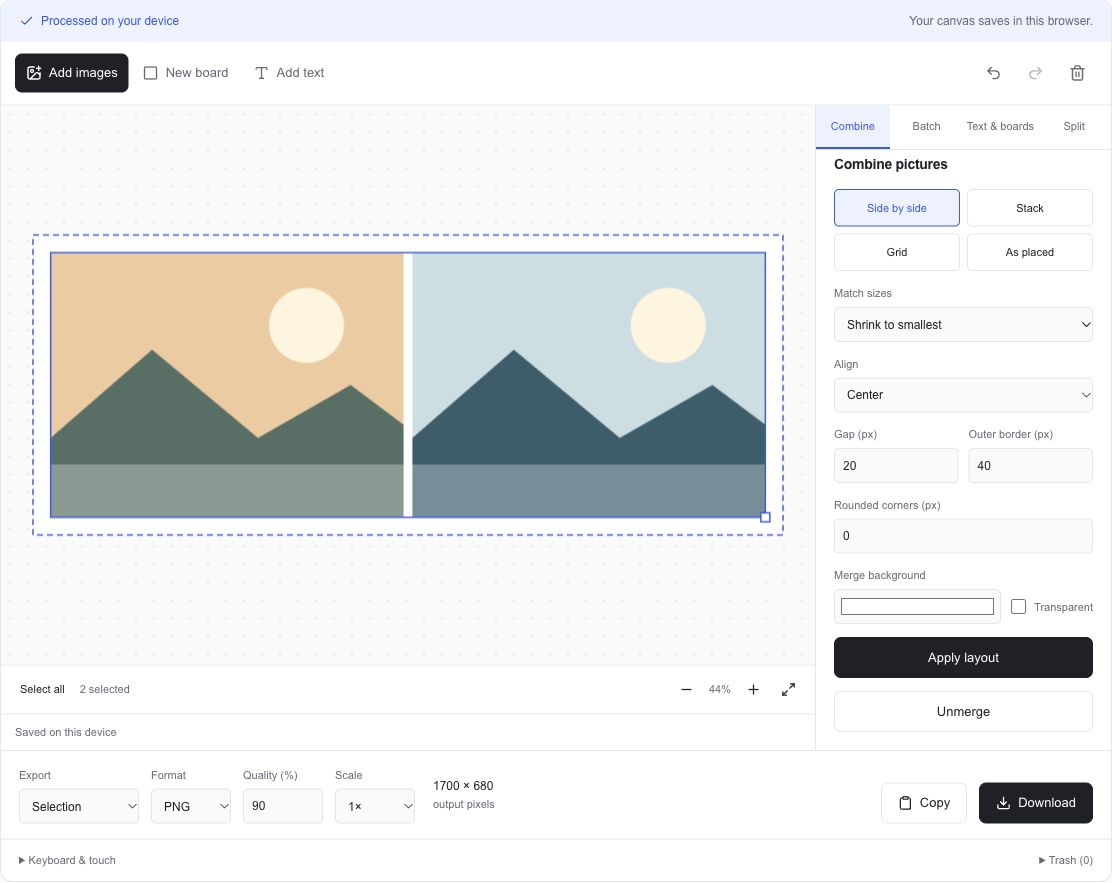
Two pictures, each 800 × 600 px
Side by side · gap 20 px · outer border 40 px
1700 × 680 px
Width = 800 + 20 + 800 + 2 × 40
Height = 600 + 2 × 40
Learn a little more
How to combine images side by side, vertically, or in a gridHow to add readable text and backgrounds to an imageFrequently asked questions
How do I combine two pictures into one?
Add both pictures, choose Select all, pick Side by side or Stack, and select Combine images. Choose a format and Download, or use Copy to write a PNG to your clipboard in a supporting browser.
Can I make a photo collage?
Yes. Grid creates a regular collage with 1–10 columns. As placed lets you drag, overlap, and resize pictures freely. A blank board gives the composition an exact output size and can hold backgrounds and text.
How can I reorder or unmerge pictures?
Drag one picture over another in an automatic merge to swap their positions. Select the group and choose Unmerge to edit the positions independently. The pictures remain separate objects in the saved canvas.
Why is the downloaded image smaller than my canvas?
Exports are reduced proportionally when their dimensions exceed 8192 pixels on one side or 25 million pixels in total. The export panel displays the resulting pixel dimensions. Reducing the export scale also makes a smaller image.
Can I keep the background transparent?
Choose Transparent for the merge background and download PNG or WebP. JPG uses a white background for transparent pixels. The canvas selection frame and resize handles are excluded from exports.