Add Text to Image
Add captions and styled text to pictures on a local canvas. Adjust fonts, outlines, shadows, and backgrounds, then download your image without a watermark.
Pictures stay on this device. Your canvas and images are saved in this browser for return visits. Data handling
Interactive workspace
The workspace uses JavaScript. Read the instructions, method, and worked results while it becomes available.
Read the worked examplesHow to use Add Text to Image
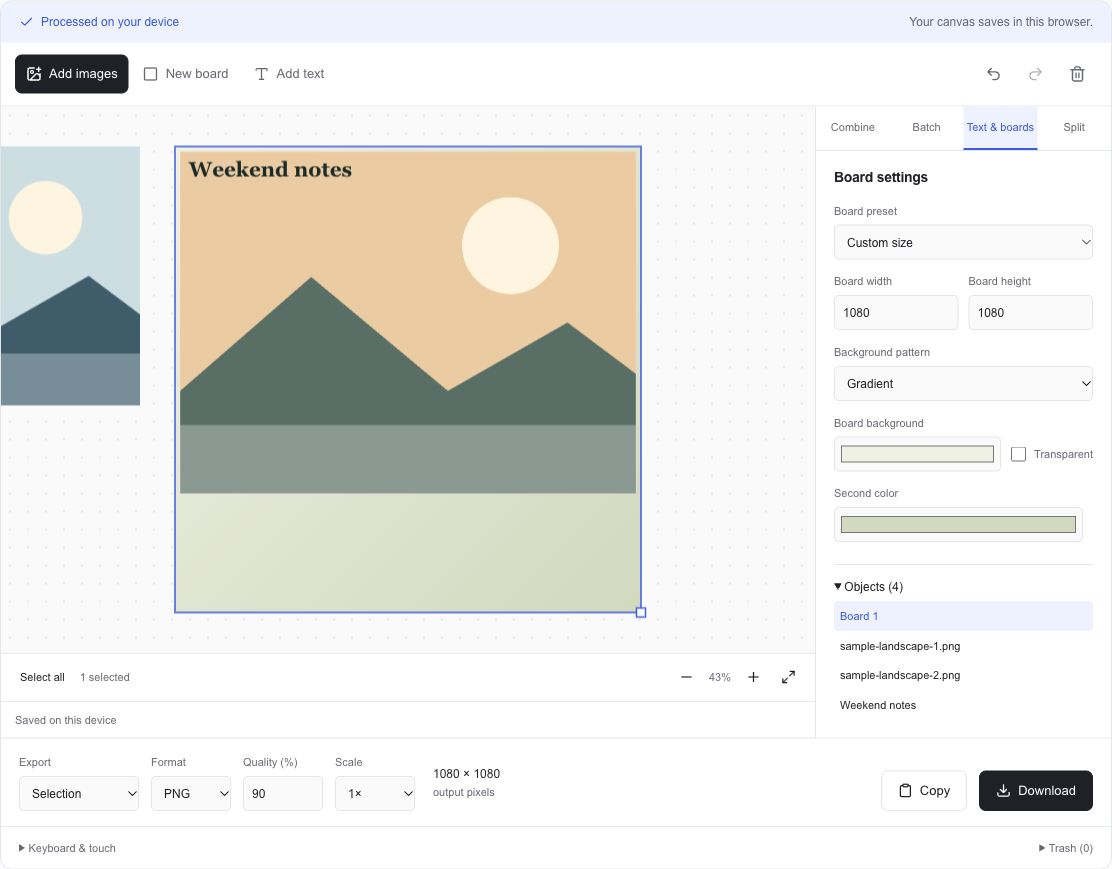
- Add a picture or choose New board. A board sets an exact composition size and can use a color, pattern, gradient, or transparent background.
- Select Add text, replace the sample words, and choose a font, size, weight, alignment, color, outline, or shadow.
- Drag the text box into place. Adjust its width and height for line wrapping and keep every line inside the box.
- Select the board to export its full composition, or select Whole canvas. Check dimensions and download PNG, JPG, or WebP.
What is Add Text to Image?
Text becomes an editable object alongside pictures and boards. Its font, wrapping box, line height, and letter spacing determine where the caption appears in the exported pixels. A background label, outline, or shadow can separate the words from a busy image. All text and image rendering happens on this device.
- Editable text boxes with five system-font choices
- Font weight, italic, alignment, line height, and letter spacing
- Outline, shadow, text background, and color controls
- Square, portrait, wide, A4-sized, and custom boards with seven background styles
Give your caption enough room
The text box width controls wrapping, and the height clips the final visible area. Increase the box height when a longer caption needs more lines. The system-font choices use fonts installed on the current device, so compare the actual preview before downloading.
New boards start at 1080 × 1080 pixels. Use a preset or enter custom width and height. A board's children move with it and are clipped at its edges. Select a picture and use Attach to board to place it inside an existing board. Select the board when you want the final output to follow that board's exact frame.
Files, dimensions, and browser support
Import JPG, PNG, WebP, GIF, AVIF, BMP, or a self-contained SVG. HEIC and HEIF open when your browser can decode them. Each input is limited to 20 MiB, 25 million pixels, and 8192 pixels on either side. An animated input becomes one still frame. SVG artwork is rasterized, and external SVG resources are rejected. The workspace freezes the decoded pixels so the picture is reproducible when reopened.
Download PNG, JPG, or WebP. PNG and WebP can preserve transparency. JPG fills transparent areas with white. Quality controls affect JPG and WebP encoding. Export scale changes pixel dimensions. A large combined canvas is reduced proportionally to fit 25 million pixels and an 8192-pixel side, and the actual output dimensions appear beside Download. Export support and available memory depend on your browser.
A canvas saved on this device
Your images are processed in this browser. The shared canvas, decoded picture files, text, layout, and batch recipe are saved in this browser's IndexedDB storage. The four workspaces open the same saved canvas, so you can return to a composition from another image-workspace page. ADEMN does not upload these pictures. Image data, filenames, dimensions, captions, and file-size targets are excluded from analytics.
Delete moves selected objects to a local trash for 30 days. Restore all brings back eligible deleted objects, while Empty trash permanently removes them from the saved canvas. Storage is specific to this browser profile and device. Private browsing, full storage, browser cleanup, or another person using the same profile can affect your saved work. Read the saving status and download important results. Undo history and generated download results last for the current page session.
A practical example
A square 1080 × 1080 px board
A caption with a 48 px font and 1.25 line height
1080 × 1080 px export at 1× scale
60 px between the start of adjacent text lines
Caption and background are rendered into the image.
Learn a little more
How to add readable text and backgrounds to an imageFrequently asked questions
How do I add a caption to an existing photo?
Add your photo, select Add text, and type your caption. Drag the text box over the photo, adjust its style, then choose Whole canvas to export both objects. Use a board to give the result an exact frame.
Can I create a blank image with text?
Yes. Choose New board, set its width, height, and background, then add text while the board is selected. The text attaches to that board. Select the board and download its composition.
Why is part of my text missing?
Text is clipped at its box's edges. Increase the box width or height, reduce the font size or line height, or use a shorter caption. Attached text is also clipped at the board's edges.
Can I edit the text after downloading?
The downloaded image contains rendered pixels. The local saved canvas keeps editable text objects, so return in the same browser to revise the caption and export a new file.
How do I export a transparent caption?
Set the text background and any board or merge background to Transparent, then download PNG or WebP. JPG fills transparent pixels with white.