How to combine images side by side, vertically, or in a grid
Choose a reading order, match image sizes, calculate spacing, and reproduce a 1700 × 680 pixel composition with ADEMN's sample pictures.
Start with the order people should read
For a comparison, put the first picture on the left and the second on the right. For a sequence of screenshots, stack them vertically so a reader can follow the steps from top to bottom. A grid works for a small collection whose pictures should receive similar visual space. Decide that reading order before choosing gaps or backgrounds.
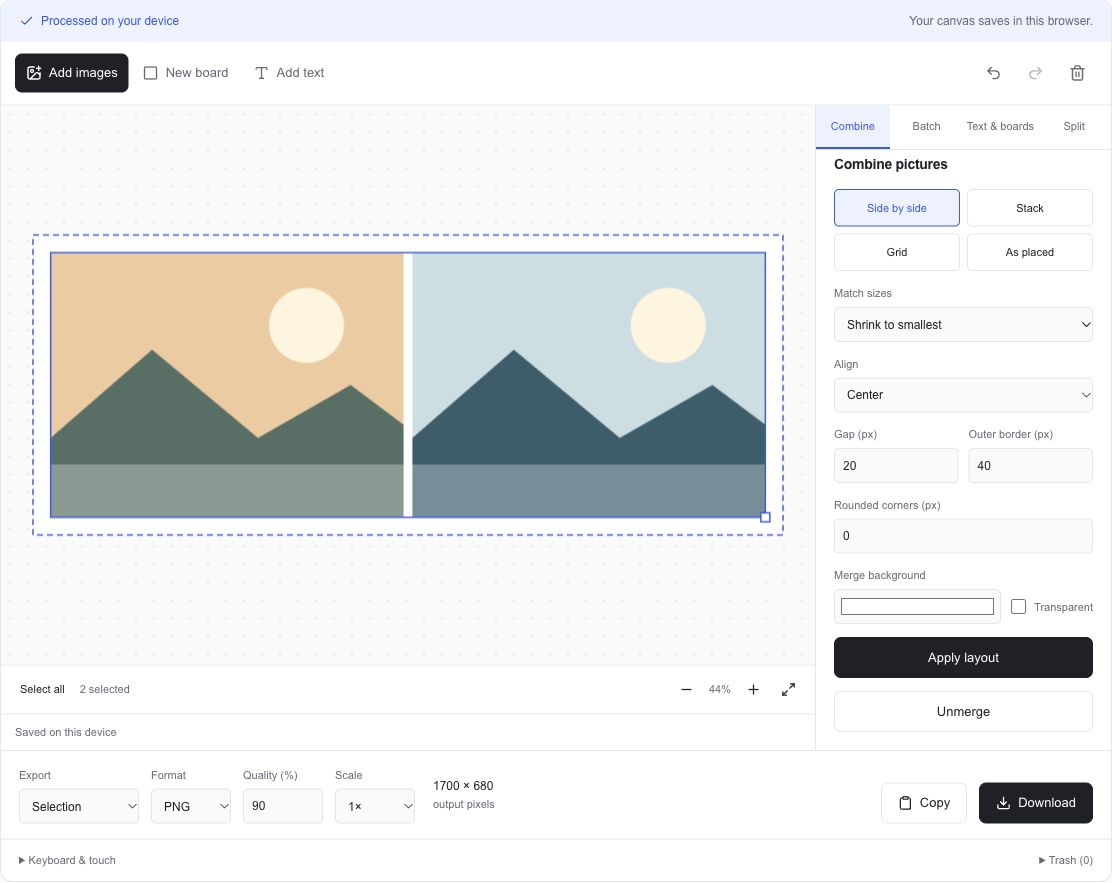
Open Image Combiner and choose Try sample pictures. This adds two generated landscape pictures, each 800 × 600 pixels. They provide fixed dimensions for the example below. Select all, choose Side by side, and select Combine images. The dashed frame marks the merged result's outer boundary. Drag one picture over the other to exchange their positions.
Match the dimension that controls the layout
A horizontal row matches picture heights. Shrink to smallest uses the shortest height, while Grow to largest uses the tallest. Each width scales with its picture's aspect ratio. A vertical stack uses the corresponding width rule. Keep original sizes retains each picture's dimensions and aligns the differently sized objects at the start, center, or end.
A grid fits pictures into common cells and preserves their proportions. Choose the column count, then inspect the last row when the number of pictures does not fill it. As placed follows the positions and overlaps you set on the canvas. Use Unmerge to return to independent object positioning, or double-click one picture to crop the part you want to show.
Check a row's width and height before downloading
For the two sample pictures, set Gap to 20 and Outer border to 40. The width contains two 800-pixel pictures, one 20-pixel gap, and 40 pixels of padding on both sides. The height contains a 600-pixel picture plus top and bottom padding. At 1× scale, the export panel should show 1700 × 680.
For a stack of those same pictures with the same settings, the width is 880 pixels and the height is 1300 pixels. Spacing is part of the final raster image. Selection outlines, resize handles, and the canvas background outside the merge frame are editing controls and are excluded from the file.
Width = 2 × 800 + 20 + 2 × 40 = 1700 px
Height = 600 + 2 × 40 = 680 px
Pixel count = 1700 × 680 = 1,156,000Width = 800 + 2 × 40 = 880 px
Height = 2 × 600 + 20 + 2 × 40 = 1300 pxChoose the background and output format together
Choose a transparent merge background and PNG or WebP when the space around your pictures should reveal a destination page's background. JPG fills transparent areas with white. Rounded picture corners also expose the chosen merge background, so inspect their appearance at the output size.
PNG keeps lossless encoding of the rendered pixels. JPG and WebP offer a quality control that can reduce bytes at the cost of image detail. Download a result and compare its actual appearance and size. The two sample illustrations have broad flat colors, so their format-size relationship can differ from a detailed photograph.
Reopen the composition on the same device
The shared image workspace saves pictures, positions, groups, text, boards, and the batch recipe in this browser's IndexedDB storage. Check the saving status below the canvas before leaving. Opening another image-workspace tool in the same browser loads that saved composition. Device or browser-profile changes open a different local storage area.
Exports are limited to 25 million pixels and 8192 pixels on either side. Larger compositions scale down proportionally, and the export panel shows the actual dimensions. To keep text readable in a long sequence, divide it into several smaller compositions and inspect each downloaded result at its intended display size.