Batch Image Editor
Batch resize, crop, rotate, and compress images in your browser. Build an ordered recipe, rename outputs, and download processed pictures as a ZIP.
Pictures stay on this device. Your canvas and images are saved in this browser for return visits. Data handling
Interactive workspace
The workspace uses JavaScript. Read the instructions, method, and worked results while it becomes available.
Read the worked examplesHow to use Batch Image Editor
- Add pictures and select the ones to process. Open Batch and load a recipe or choose your own steps.
- Add or reorder transparent trimming, centered cropping, resizing, rotation, flipping, and border steps. The steps run from top to bottom.
- Choose the output format, quality, optional maximum KB, and a file name template. Select Process pictures.
- Check each result's actual dimensions, format, and size. Download a ZIP, download images individually, retry failed images, or put results on the canvas.
What is Batch Image Editor?
Batch image editing applies the same ordered operations to several pictures. This is useful when preparing consistent thumbnails, reducing web image dimensions, or adding matching borders. ADEMN processes one selected picture at a time and reports each result, so a problem with one input can be retried after the other pictures finish.
- Reusable ordered recipes and per-image progress
- Trim, crop, resize, rotate, flip, and border operations
- JPG/WebP quality search toward an optional KB target
- File name templates, collision handling, individual files, and ZIP download
Order the operations before processing
Crop then resize when every result needs the same composition and dimensions. Add a border last if its thickness should be measured in final pixels. Reversing resize and border scales the border along with the picture. Rotation can exchange the width and height, which changes the next crop or resize step.
With Same format, JPG, PNG, and WebP retain their source format. Other decoded inputs export PNG. A zero resize dimension preserves proportions using the other dimension. Two specified dimensions set an exact size and can stretch the picture. With both dimensions zero, the percentage controls scaling.
Understand a maximum-KB result
The target uses 1024 bytes per KB. JPG and WebP try quality settings up to your selected quality and return a result that fits when one is found. A lower quality still cannot guarantee every target size at fixed dimensions. A result that exceeds the target is labeled so you can reduce dimensions and process again.
PNG keeps lossless pixel encoding, so its quality setting does not create the same lossy quality-size tradeoff. A PNG that exceeds the target needs smaller dimensions or another format. Results report actual byte counts, including cases where a re-encoded image is larger than the source.
Files, dimensions, and browser support
Import JPG, PNG, WebP, GIF, AVIF, BMP, or a self-contained SVG. HEIC and HEIF open when your browser can decode them. Each input is limited to 20 MiB, 25 million pixels, and 8192 pixels on either side. An animated input becomes one still frame. SVG artwork is rasterized, and external SVG resources are rejected. The workspace freezes the decoded pixels so the picture is reproducible when reopened.
Download PNG, JPG, or WebP. PNG and WebP can preserve transparency. JPG fills transparent areas with white. Quality controls affect JPG and WebP encoding. Export scale changes pixel dimensions. A large combined canvas is reduced proportionally to fit 25 million pixels and an 8192-pixel side, and the actual output dimensions appear beside Download. Export support and available memory depend on your browser.
A canvas saved on this device
Your images are processed in this browser. The shared canvas, decoded picture files, text, layout, and batch recipe are saved in this browser's IndexedDB storage. The four workspaces open the same saved canvas, so you can return to a composition from another image-workspace page. ADEMN does not upload these pictures. Image data, filenames, dimensions, captions, and file-size targets are excluded from analytics.
Delete moves selected objects to a local trash for 30 days. Restore all brings back eligible deleted objects, while Empty trash permanently removes them from the saved canvas. Storage is specific to this browser profile and device. Private browsing, full storage, browser cleanup, or another person using the same profile can affect your saved work. Read the saving status and download important results. Undo history and generated download results last for the current page session.
A practical example
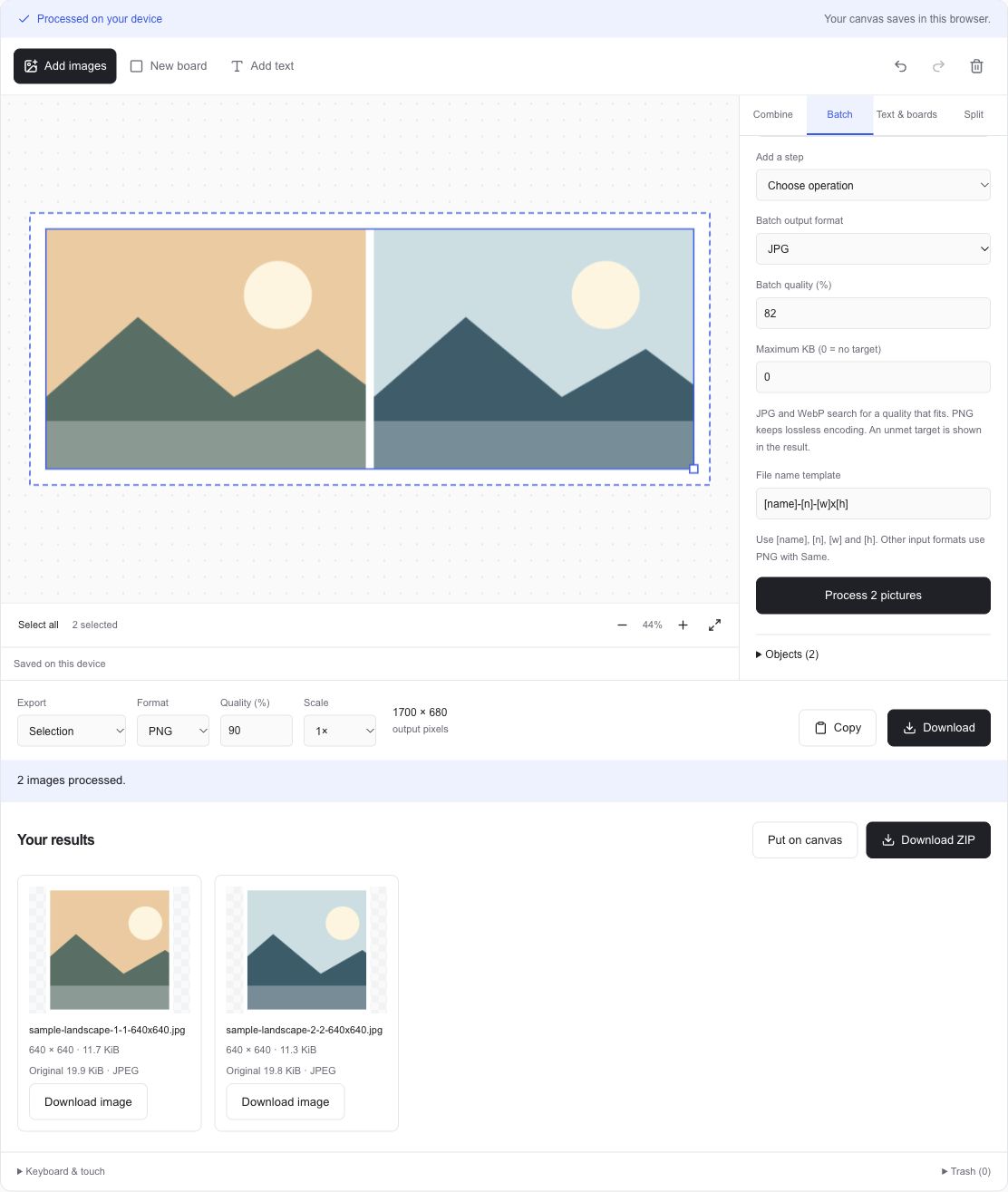
Two 800 × 600 px pictures
Crop 1:1 → Resize 600 × 600 → Add 20 px border
Two 640 × 640 px outputs
Each side = 600 + 2 × 20
Actual encoded bytes are reported after processing.
Learn a little more
How to batch resize, crop, and compress images with one recipeFrequently asked questions
Can I resize many photos at once?
Yes. Add the photos, select them, add a Resize step in Batch, and choose pixel dimensions or a percentage. Set one dimension to zero to preserve proportions. Process the pictures and download the results as a ZIP.
Will every picture meet the maximum KB?
No. JPG and WebP search for a fitting quality at the processed dimensions. If the smallest tested output is still too large, the result is marked as exceeding the target. PNG keeps lossless encoding. Reduce the dimensions or choose another format and try again.
Can I rename the downloaded files?
Use [name] for the source base name, [n] for the picture's sequence number, and [w] and [h] for final pixel dimensions. Filenames are cleaned for download, and duplicate names receive a numeric suffix.
What happens when one picture fails?
The remaining pictures continue processing. Successful files stay available to download, and failed pictures appear in a retry list. Retry uses the original job's recipe. Start a new processing run to use changed settings.
Does canceling delete completed results?
Completed results remain available. Cancel stops at a processing boundary, so an operation already being encoded may need to finish before the tool stops. You can download the completed files or begin another run.