Image Splitter
Split an image into rows, columns, or a custom grid in your browser. Preview every tile, keep all edge pixels, and download the pieces as PNG files or a ZIP.
Pictures stay on this device. Your canvas and images are saved in this browser for return visits. Data handling
Interactive workspace
The workspace uses JavaScript. Read the instructions, method, and worked results while it becomes available.
Read the worked examplesHow to use Image Splitter
- Add an image, then select it on the canvas or in the Objects list.
- Choose 2 across, 2 down, 2 × 2, 3 × 3, or enter 1–10 rows and columns.
- Select Split image. The current crop, rotation, and flip settings are rendered before the picture is divided.
- Review the tile dimensions and download a ZIP or individual PNG files. The pieces also appear on the canvas for further editing.
What is Image Splitter?
An image splitter divides a raster picture into rectangular tiles. Pieces are numbered left to right and then top to bottom. When the dimensions do not divide evenly, the first columns or rows receive one extra pixel. Every source pixel belongs to exactly one piece, and the pieces can be placed edge to edge to reconstruct the rendered source.
- Horizontal, vertical, and 1–10 by 1–10 custom grids
- Predictable row-major tile order
- Whole-pixel boundaries with remainder pixels retained
- PNG tiles, ZIP download, and editable pieces on the saved canvas
Keep the pieces in a predictable order
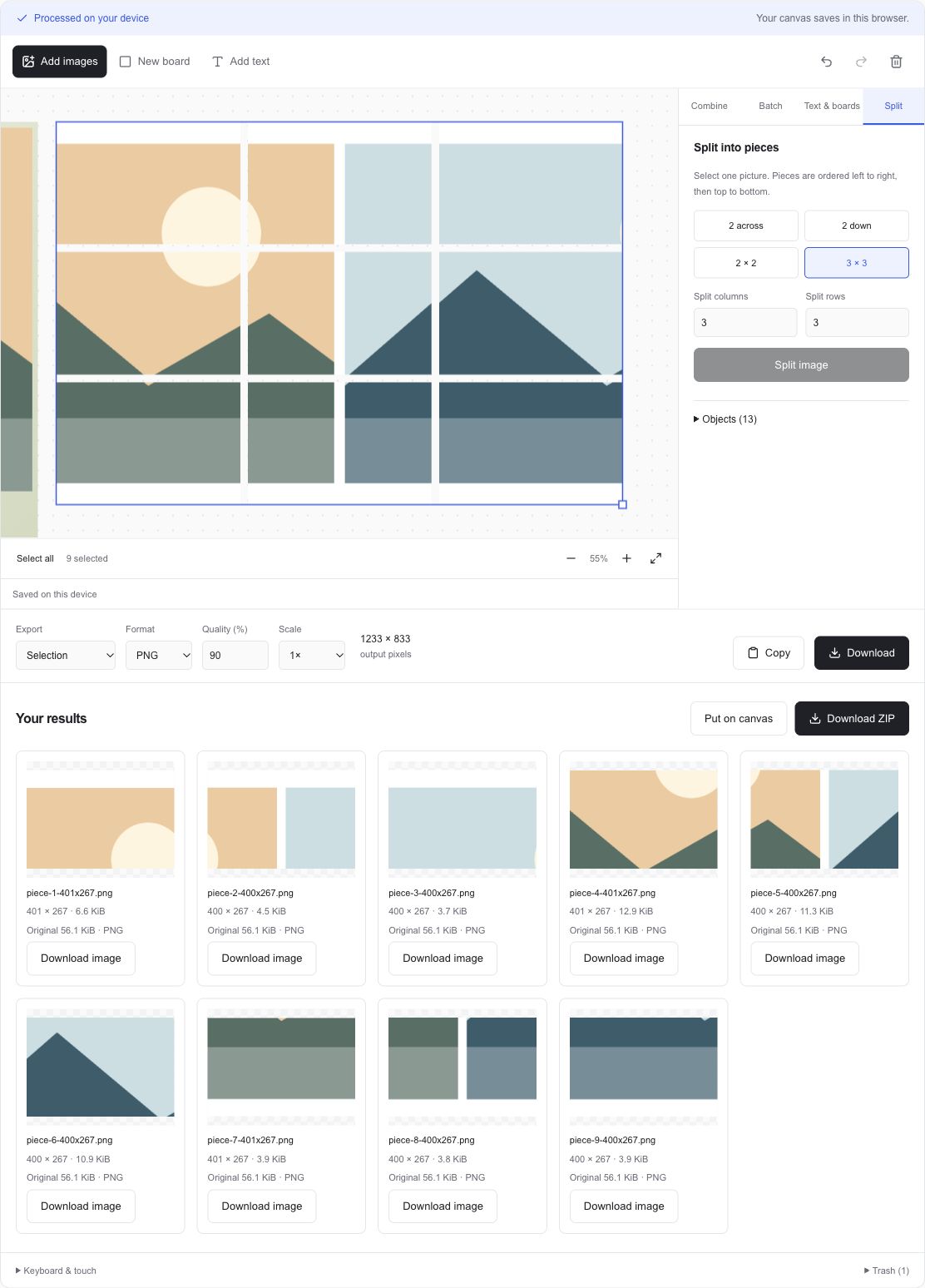
The first result is the top-left tile. For a 3 × 3 grid, files 1–3 are the first row, 4–6 the second, and 7–9 the third. The filenames include the sequence and actual dimensions so you can check the pieces before placing them elsewhere.
The splitter works on the selected picture's current rendered appearance. Cropping, rotation, flipping, borders, or rounded corners can therefore affect its pixels. The source object moves to the local trash when the tiles replace it, and Undo restores the previous canvas during the current session.
Files, dimensions, and browser support
Import JPG, PNG, WebP, GIF, AVIF, BMP, or a self-contained SVG. HEIC and HEIF open when your browser can decode them. Each input is limited to 20 MiB, 25 million pixels, and 8192 pixels on either side. An animated input becomes one still frame. SVG artwork is rasterized, and external SVG resources are rejected. The workspace freezes the decoded pixels so the picture is reproducible when reopened.
Download PNG, JPG, or WebP. PNG and WebP can preserve transparency. JPG fills transparent areas with white. Quality controls affect JPG and WebP encoding. Export scale changes pixel dimensions. A large combined canvas is reduced proportionally to fit 25 million pixels and an 8192-pixel side, and the actual output dimensions appear beside Download. Export support and available memory depend on your browser.
A canvas saved on this device
Your images are processed in this browser. The shared canvas, decoded picture files, text, layout, and batch recipe are saved in this browser's IndexedDB storage. The four workspaces open the same saved canvas, so you can return to a composition from another image-workspace page. ADEMN does not upload these pictures. Image data, filenames, dimensions, captions, and file-size targets are excluded from analytics.
Delete moves selected objects to a local trash for 30 days. Restore all brings back eligible deleted objects, while Empty trash permanently removes them from the saved canvas. Storage is specific to this browser profile and device. Private browsing, full storage, browser cleanup, or another person using the same profile can affect your saved work. Read the saving status and download important results. Undo history and generated download results last for the current page session.
A practical example
1201 × 801 px image
3 columns × 3 rows
9 pieces, ordered left to right and top to bottom
Column widths 401, 400, 400 px
Each row is 267 px high
Learn a little more
How to split an image into grid tiles without losing edge pixelsFrequently asked questions
How do I split a photo into nine parts?
Add and select the picture, open Split, choose 3 × 3, and select Split image. Download the nine PNG pieces individually or together as a ZIP.
What happens when the width is not divisible by the column count?
The first columns receive one extra pixel until the remainder is allocated. For 1201 pixels across three columns, the widths are 401, 400, and 400 pixels. The full width is retained.
Can I split an image into equal-sized pieces?
Yes, when the width divides evenly by the number of columns and the height divides evenly by the number of rows. Crop or resize first when exact equal dimensions are required.
Does splitting lower the image resolution?
At 1× scale, each tile retains the pixels in its region of the current rendered picture. PNG keeps lossless encoding of those rendered pixels. Resizing or editing the source before splitting changes that rendered picture.
Can I get the original picture back?
Undo returns the previous canvas in the current page session. The replaced source object is also moved to the local 30-day trash, where Restore all can bring it back. Your original file on disk is available wherever you kept it.