How to add readable text and backgrounds to an image
Set a board size, position an editable caption, control wrapping and line height, and export text with the intended background and pixel dimensions.
Set the composition's pixel frame
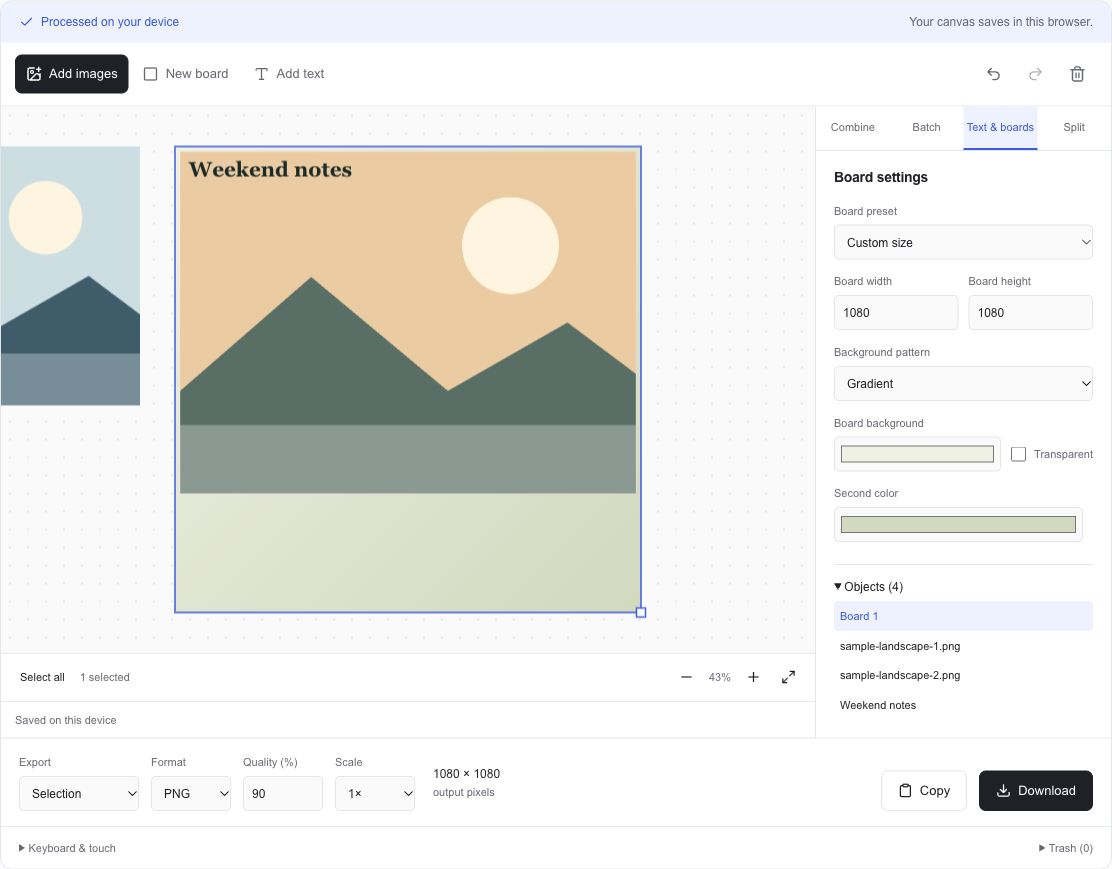
A board supplies an explicit output rectangle. In Add Text to Image, choose New board to start at 1080 × 1080 pixels, then choose a preset or enter custom dimensions. Available presets also include 1080 × 1920 portrait, 1280 × 720 wide, and an A4-shaped 794 × 1123 frame based on approximately 96 pixels per inch.
Choose a solid color, dots, grid, stripes, checkerboard, hearts, gradient, or transparent background. To attach an existing picture, select it and choose the board in Attach to board. New pictures added while the board is selected are placed inside it. A board clips attached objects at its frame, and moving the board carries its children with it.
Place a caption and give it enough contrast
Select a picture or board and choose Add text. Replace the sample words with the caption, then drag its text box into position. Choose a system font, size, regular or bold weight, and optional italic styling. The preview uses the available fonts on this device.
Use the caption's color against the area directly behind it. A solid text background makes a label, while an outline or shadow can separate letter edges from detailed pixels. Check the caption at the final display size. A large zoomed editor view can make thin or small lettering look easier to read than it will appear in a downloaded thumbnail.
Check width, height, and line spacing together
Text wraps inside the box's width and is clipped at its height. Increase the height when a caption gains a line, or widen the box to reduce wrapping. Alignment changes each line's horizontal position inside that same box. Letter spacing changes the distance between neighboring characters and can create additional wrapped lines.
Line height multiplies the font size to determine the distance between successive line starts. A 48-pixel font with a line height of 1.25 uses 60 pixels between line starts. That interval is distinct from a font's visible letter height, which depends on the font's glyph shapes. Leave room for the full caption and its outline or shadow.
Font size 48 px × line height 1.25 = 60 px
Board 1080 × 1080 at 1× = 1080 × 1080 output
Board 1080 × 1080 at 0.5× = 540 × 540 output
Select the frame you want to download
Select the board when exporting a complete composition with attached pictures and text. Selecting a text object by itself exports that text box. Whole canvas uses the bounding rectangle of the full scene. Check the output dimensions beside Download and choose PNG, JPG, or WebP.
For a transparent label, set the text background and any board or merge background to Transparent, then use PNG or WebP. JPG fills transparent regions with white. The downloaded file contains rendered pixels, while the saved local canvas retains editable text objects for future revisions.