How to batch resize, crop, and compress images with one recipe
Build an ordered batch recipe, calculate final border dimensions, use KB targets accurately, and verify named image files in a ZIP download.
Select pictures with the same destination requirements
Start with the destination's pixel dimensions, transparency requirements, and accepted formats. A square thumbnail and a wide article image need different crop ratios. Group pictures by that intended result, then select the matching objects in Batch Image Editor. The batch recipe applies to the selected pictures.
Use Try sample pictures for two 800 × 600 inputs. Choose the Square thumbnails recipe to center-crop each to a square and resize it to 600 × 600 pixels. Review a sample result before processing important images. A centered crop can remove a subject placed near an edge, so an individual crop may need adjustment first.
Put the operations in the order you intend
Steps run from top to bottom for every selected picture. Crop first when you want a consistent composition, resize next for destination dimensions, then add a border measured in final pixels. Rotate before a later crop when the intended orientation changes the crop's width and height. Flip changes the visual direction while preserving dimensions.
To extend the sample recipe, add a 20-pixel border after Resize. Each 600 × 600 image becomes 640 × 640 because a border is added to both sides of each axis. Move the border before Resize and the later exact 600 × 600 step scales the whole bordered picture, producing a different result.
Start 800 × 600 px
Crop 1:1 → 600 × 600 px
Resize to 600 × 600 → 600 × 600 px
Add 20 px border → 640 × 640 px
Choose proportional scaling or exact dimensions
Enter a width and leave height at zero to preserve proportions from the current step's image. For an 800 × 600 input, width 400 and height zero produce 400 × 300. Set both dimensions to zero to use a percentage. At 50%, both dimensions halve, which reduces pixel count to one quarter.
The Longest side control scales either a portrait or landscape to the same maximum side while retaining proportions. Only shrink caps enlargement at the current dimensions. Entering both width and height sets an exact size and can stretch the picture. Crop to the intended ratio first when you need a particular size while retaining proportions. A resize step can enlarge a small input, so compare the original resolution with the destination and inspect enlarged results for softness.
| Width | Height | Percentage | Result |
|---|---|---|---|
| 400 | 0 | 100 | 400 × 300 |
| 0 | 0 | 50 | 400 × 300 |
| 600 | 600 | 100 | 600 × 600, stretched unless cropped first |
Read the actual result of a KB target
Maximum KB uses 1024 bytes per KB. A 200 KB target therefore means 204,800 bytes. For JPG or WebP, the encoder tests quality settings and searches within your selected quality ceiling for an output that fits. The resulting byte count is shown beside every processed picture.
Some pictures exceed a target even at the lowest tested quality. These results receive an explicit target-unmet label. Reduce dimensions or choose a different format before trying again. PNG uses lossless encoding of the current pixels, so adjusting its quality value does not provide the same size control. Keep PNG or WebP when transparent areas matter, and compare the downloaded appearance.
200 × 1024 = 204,800 bytes
Output 198,400 bytes → target met
Output 221,000 bytes → target unmet
Verify names and files in the downloaded ZIP
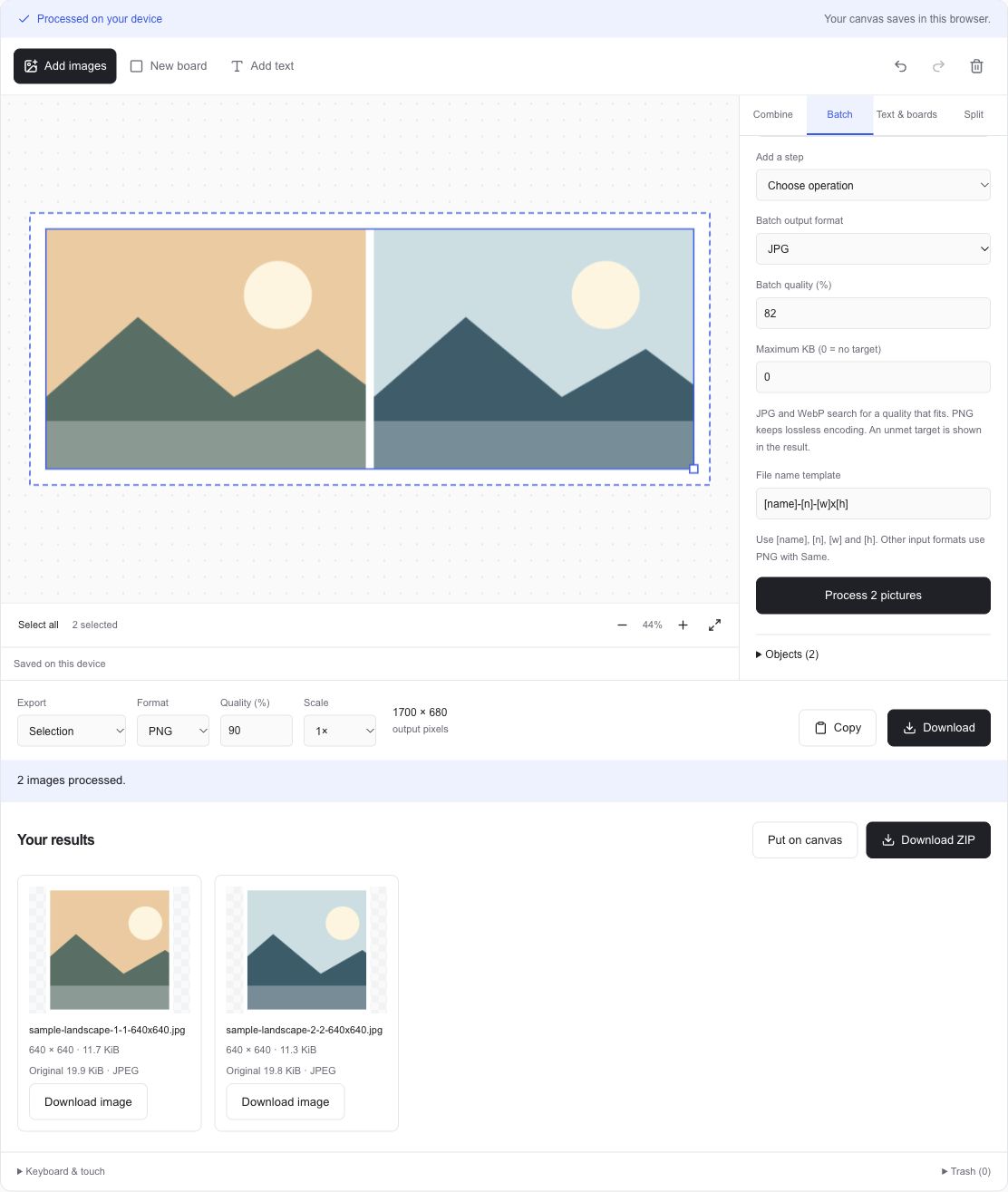
The default name template combines the original base name, sequence number, and output dimensions. Change it with [name], [n], [w], and [h]. ADEMN cleans path separators from filenames and adds a numeric suffix when names repeat. Same format keeps JPG, PNG, and WebP, while other imported formats export PNG.
Download ZIP collects completed outputs. You can also download individual files or put processed results on the canvas to combine them. A failed picture has its own error and retry action. Cancel stops remaining work while retaining completed results. The saved batch recipe is available on return visits, and the result list is held for the current page session.